Motherboards button
Cartes Mères
Graphics Card button
Carte graphique
Monitors button
Moniteur de jeu
Power Supply button
Power Supply
Mini PC button
Mini PC
AIO Liquid Coolers button
AIO Liquid Coolers
Industrial PC button
PCs Industriels
Server/WS button
Serveurs / Stations de Travail
Loading

We use cookies to offer you a more personalized and smoother experience.
By visiting this website, you agree to our use of cookies. If you prefer not to accept cookies or require more information, please visit our Privacy Policy.

Foire Aux Questions

Si votre questions porte sur un domaine particulier, vous pouvez choisir directement une catégorie ci-contre pour les réponses aux questions les plus fréquentes:

Résultats:
Question (Q&A-181|537): How do I configure Realtek 5.1ch audio output on N100M under Windows 10?(10/29/2024)
Answer:Please follow the steps below.
1. Go to BIOS\Chipset Configuration and set Intel SST to "Enabled”.
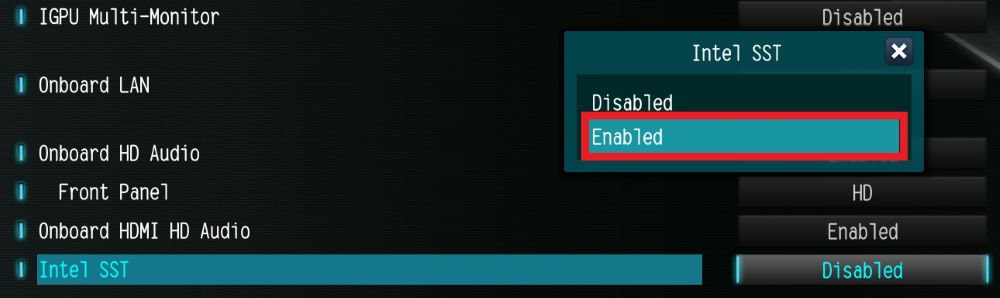
Go to BIOS\Chipset Configuration and set Intel SST to

2. Boot into Windows. Download and install Realtek high definition audio driver version:6.0.9503.1_RTK_SST and follow the instructions, restarting the system after the installation.
Realtek high definition audio driver ver:6.0.9503.1_RTK_SST:

https://download.asrock.com/Drivers/All/Audio/Realtek_Audio(v6.0.9503.1_RTK_SST).zip

3. After the restart, please check Device Manager > Sound, video and game controllers.

After the restart, please check Device Manager > Sound, video and game controllers.”

#N100M #Realtek #Audio #5.1 #HDMI #Audio #ISST #Intel #SST #surround #sound #no #sound #audio #driver #Intel #Audio #Win #10 #Windows