If you are fully aware of the category of your question, you may choose one of the categories below for frequently asked questions. Catalogue: General FAQ, HDD FAQ, VGA FAQ, Audio FAQ, Show all models.
Question (Q&A-75|256):
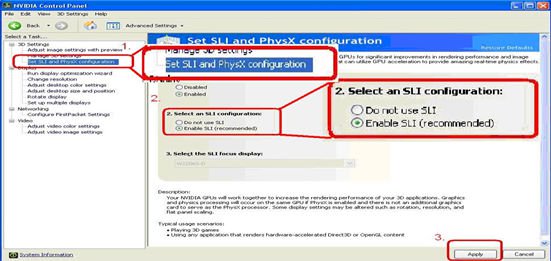
I have plug two NVIDIA® VGA cards on my motherboard but, I cannot find the Enable SLI option in NVIDIA® Control panel?(9/3/2009)
Answer:Following steps as below may help you to solve this issue.
1. If your motherboard has the SLI/XFire switch card, please put the SLI/XFire Switch card to 8x/8x, if there is no switch card on your motherboard, please skip this step.
2. Remove the graphics card from the PCI-E 1 slot.
3. Restart Windows.
4. Install the driver for the graphics card (again).
5. Put the VGA card back into the PCI-E 1 slot, and put the SLI bridge on.
6. Activate SLI function by NVIDIA® control panel ..
7. Or please download the latest VGA driver from NVIDIA® Web Site and try the new
driver. http://www.nvidia.com/Download/index.aspx?lang=en-us
Question (Q&A-74|252):
If I use HDMI output, the desktop size can not fully fit the monitor.
How can I do?(8/11/2009)
Answer:
If your monitor has "PC mode”, please try to adjust monitor to PC mode. If not, please contact your monitor vender for help.
Or you can do some setting on driver.
ATI VGA output, please refer setting A.
NVIDIA® VGA output, please refer setting B.
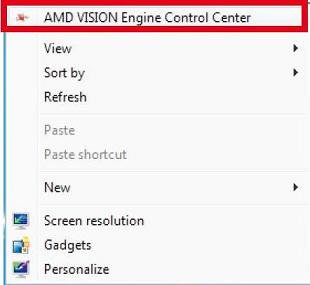
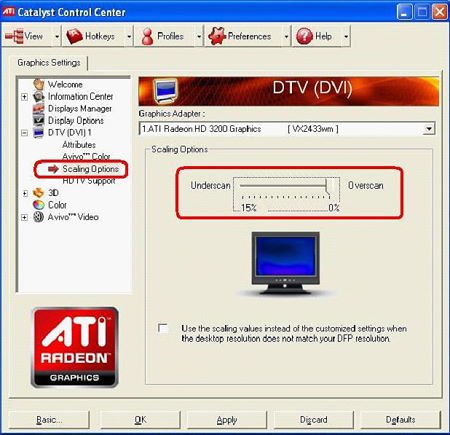
A. If you use ATI VGA output, please enter [ATI driver controller] to adjust [Scaling Option]
1. Right check the mouse, and enter ATI driver controller.
2. Find the [Scaling Option] to setting the bar until to fit the size.
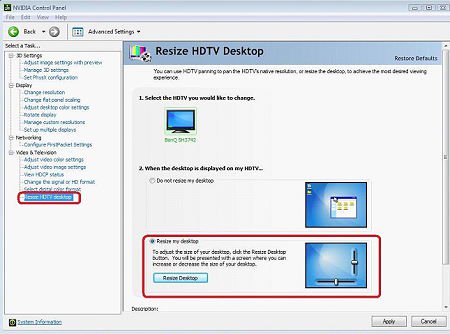
B. If you use NVIDIA® VGA output, please enter [NVIDIA® driver controller] to adjust [Resize desktop]
1. Right check the mouse, and enter NVIDIA® driver controller.
2. Find the [Resize desktop] option to setting the bar until to fit the size.
Question (Q&A-70|245):
I install ATI 2xxx, 3xxx, 4xxx series PCIE VGA card on the motherboard. After installing all Windows® XP drivers from the motherboard, it still shows an unknown "audio device on the high definition audio bus." message under device manager. What could I try?(1/12/2009)
Question (Q&A-69|242):
When I connect a HDMI_SPDIF cable from the HDMI VGA card (GTX260 or GF9800) to the onboard HDMI_SPDIF header, it cannot get sound from the HDMI output. What should I do?(11/27/2008)
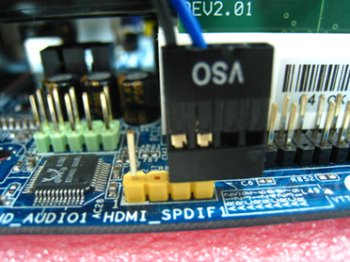
Answer:The pin definition of the onboard HDMI_SPDIF header is different from the header of some VGA cards.
Please plug in the HDMI_SPDIF cable reversely like following picture.
Question (Q&A-56|205):
I am using the onboard VGA of A780FullDisplayPort or ATi Radeon HD 2xxx/3xxx series PCIE card. Every time I run the 3DMARK or PCMARK, it always freezes during the splash-screen. It does not work at all. How do I fix it?(8/3/2007)
Answer:This is a compatibility issue of ATi Radeon HD 2xxx/3xxx PCIE card and 3DMARK/ PCMARK program.
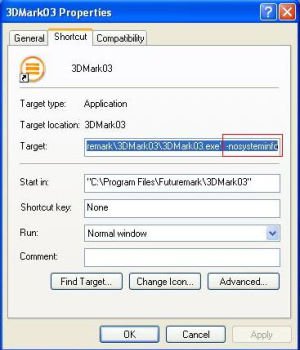
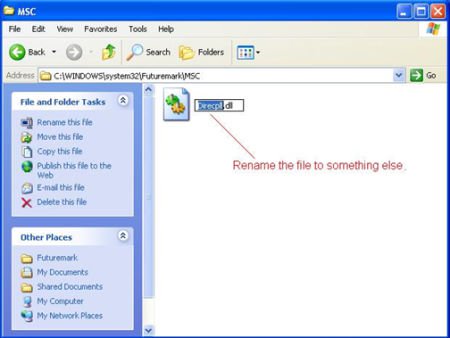
Futuremark provides 2 solutions for this issue as follows. Solution 1: Add the command line –nosysteminfo into the target of 3DMARK / PCMARK's shortcut. Solution 2: Rename the "Direcpll.dll" file to something else. (Found in C:\WINDOWS\system32\Futuremark\MSC\Direcpll.dll)
The link of Futuremark FAQ: http://service.futuremark.com/support/search.jsp?categoryid=14&search=1
Question (Q&A-53|199):
I'm using Windows® Vista™. I just installed a new VGA card, but the screen gets abnormal display. Is there anything I should do?(4/20/2007)
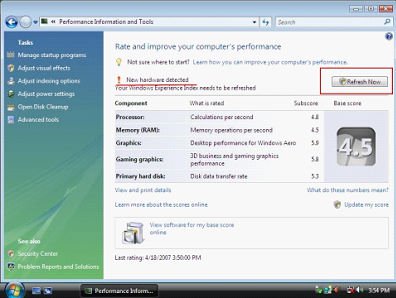
Answer:After you install a new hardware device (especially VGA card) under Windows® Vista™, we suggest re-rating your system (refer to the following steps). It may be able to solve the problem.
1.Go to Start > Control Panel > System and Maintenance> Performance Information and Tool
2.You will see the above screen. Press "Refresh Now" to re-rate your system.
Question (Q&A-33|147):
I use PCI Express VGA card on my ASRock motherboard. My operation system is Windows 98SE / ME. In "Device Manager", there are two "Display Adapter Controllers" in "Display Adapters" option. What should I do?(7/15/2005)
Answer:Please follow the below steps to install PCIE VGA card driver.
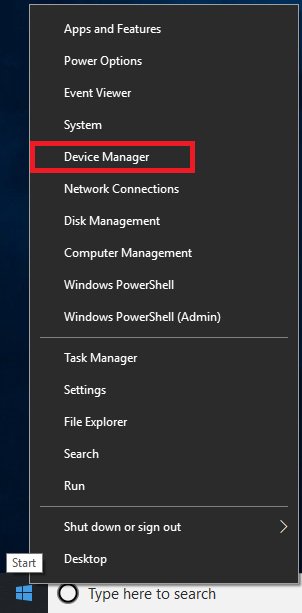
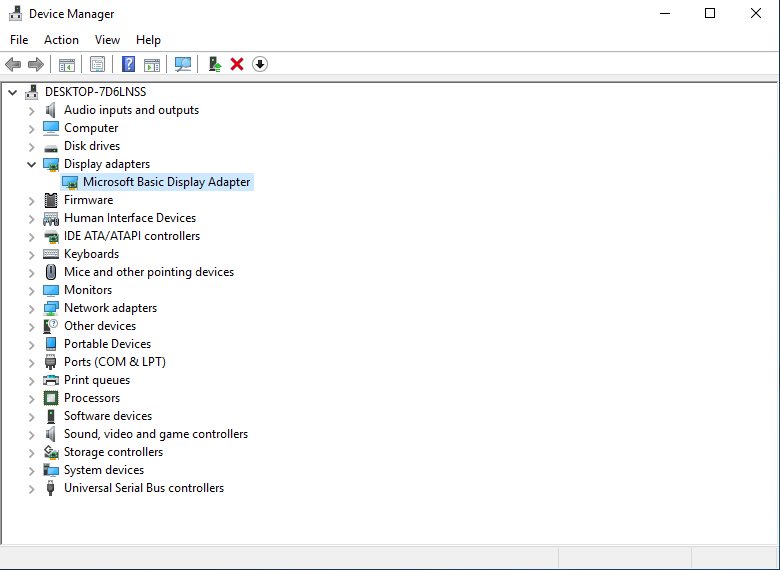
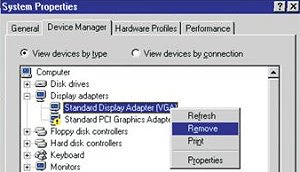
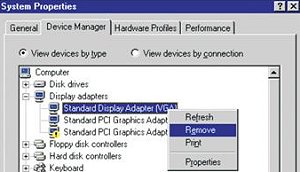
a. Please enter "Device Manager" and you will see "Standard Display Adapter (VGA) and "Standard PCI Graphics Adapter (VGA)" in the "Display Adapters" option.
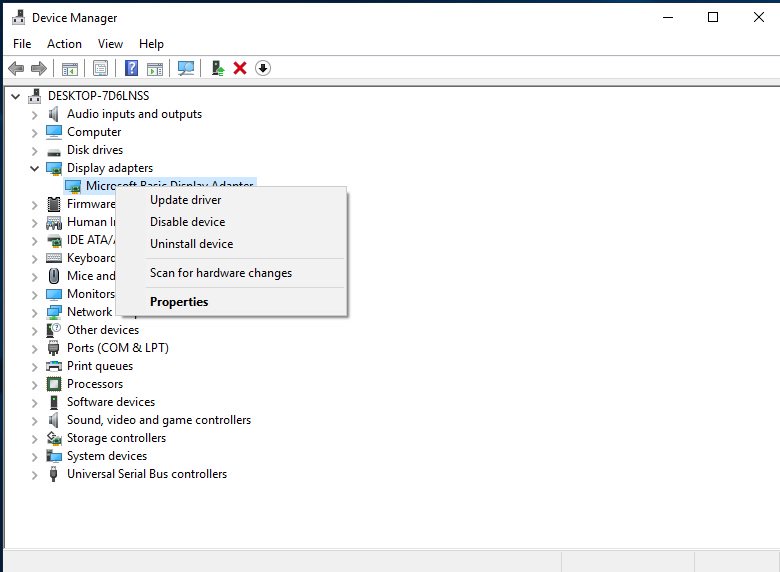
b. Please Choose "Standard Display Adapter (VGA)" and right-click "Remove".
c. After removing the device, please reboot your system. Then, you will only see "Standard Display Adapter (VGA)" in "Display Adapter" option.
d. Please start to install your PCIE VGA card driver.
Question (Q&A-22|110):
My motherboard is SiS chipset based motherboard and the driver of AGP PCI to PCI is version 1.16a or 1.13.03 installed. After updating the Windows XP to service pack 2, there is an exclamation mark in AGP driver of device manager. What should I do?(8/16/2004)
Answer:If you see an exclamation mark in AGP driver of device manager, please simply reinstall the SiS AGP PCI to PCI driver from ASRock support CD or web site again.
Question (Q&A-11|60):
Can I use on-board VGA and add-on AGP card for dual monitors?(9/15/2003)
Answer:No, if you would like to use dual monitors please install PCI VGA card with on-board VGA or AGP card with PCI VGA card on the motherboard.
Question (Q&A-11|57):
My ASRock motherboard provides a 1.5V AGP slot. How do I know if I can use my AGP card on the motherboard?(9/15/2003)
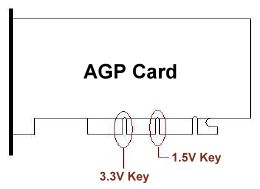
Answer:Generally, the notch of 1.5V AGP slot is different from 3.3V AGP slot. Please refer to the following picture. If your AGP card has the 1.5V key, it is able to work on a 1.5V AGP slot. But few AGP adapters such as SiS305 based cards do not match the rule.
Please check detail AGP SPEC form http://www.ertyu.org/~steven_nikkel/agpcompatibility.html
If you are not sure what your AGP card is 1.5V or 3.3V, please double check with the card vender.
Question (Q&A-04|15):
When I want to install an add-on AGP graphics card, do I need to adjust any settings in the BIOS if my motherboard has Onboard VGA?(1/30/2003)
Answer:No! You do not need to adjust any settings in the BIOS. ASRock motherboard will switch between add-on AGP and Onboard VGA automatically when you install or uninstall it.