우리는 더 개인화되고 더 부드러운 경험을 제공하기 위해 쿠키를 사용합니다. 이 웹사이트를 방문하면 쿠키 사용에 동의하는 것 입니다. 쿠키를 허용하지 않거나 추가 정보가 필요한 경우 당사의 개인 정보 보호 정책을 방문하십시오.
필수 쿠키 이 쿠키는 웹사이트의 정상적인 작동에 필수적이며 비활성화할 수 없습니다.
분석 쿠키 이 쿠키는 방문자가 웹사이트를 어떻게 사용하는지 파악하는 데 도움이 됩니다.
마케팅 쿠키 이 쿠키는 방문자를 추적하고 관련 광고를 표시하는 데 사용됩니다.
소셜 미디어 쿠키 이 쿠키를 사용하면 소셜 미디어에서 페이지와 콘텐츠를 공유할 수 있습니다.
Q: How do I check if the system can support Secure Boot?(10/1/2021) A: In order to use Secure Boot, the drive with the operating system must use GPT partition style. Please refer to below steps to check the partition style.
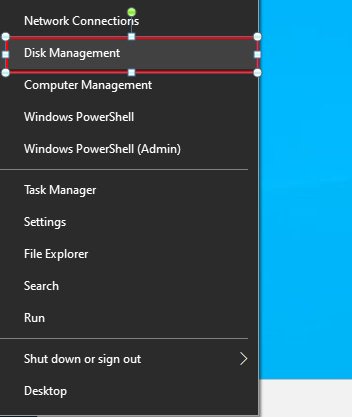
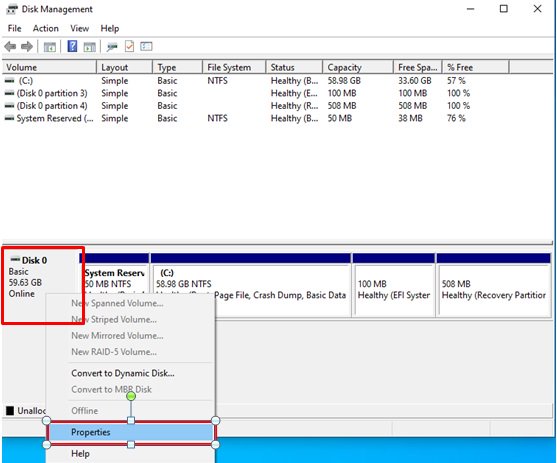
Step 1: Right-click the Windows button on the desktop and select "Disk Management”.
Step 2: Right-click the disk where Windows is installed and select the "Properties”.
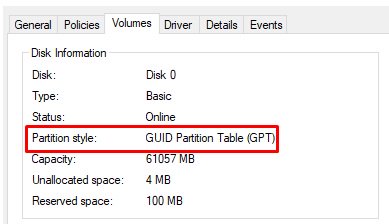
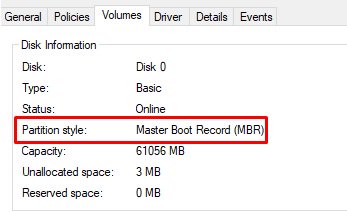
Step 3: Click the "Volumes” tab and check if the partition style is "GPT”.
Step 4: If the partition style is "MBR”, please make a backup of important data on the system and refer to steps 5 - 7 to convert the partition style to GPT.
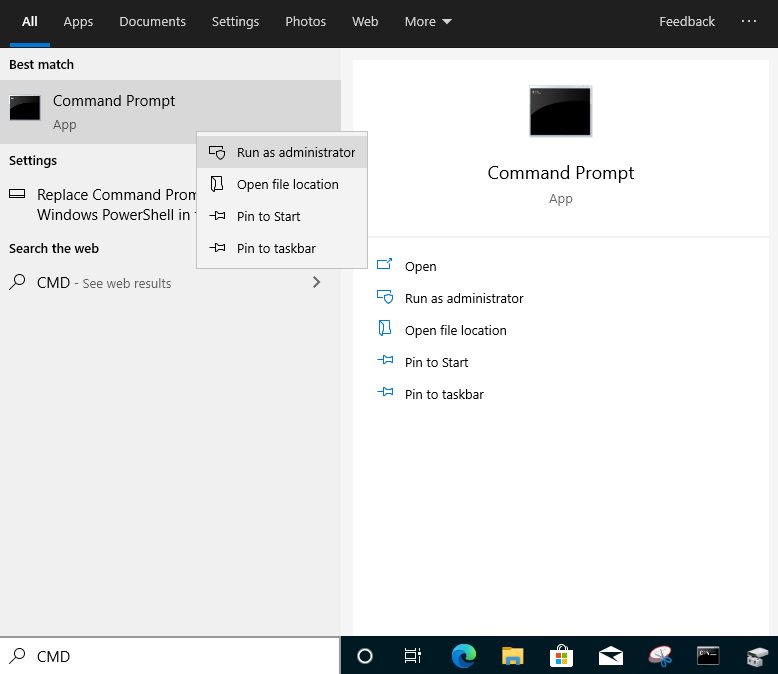
Step 5: Type "CMD" in the Windows search bar, right-click on "Command Prompt” and choose to run as administrator.
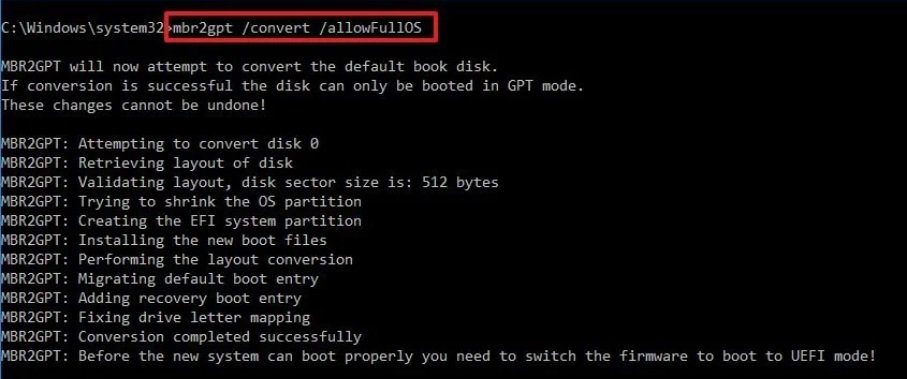
Step 6: Type the command "mbr2gpt /convert /allowFullOS” to convert the partition style and press [Enter].
Step 7: Restart the system and the BIOS Mode/Partition style will be converted to UEFI/GPT.
 메뉴
메뉴