우리는 더 개인화되고 더 부드러운 경험을 제공하기 위해 쿠키를 사용합니다. 이 웹사이트를 방문하면 쿠키 사용에 동의하는 것 입니다. 쿠키를 허용하지 않거나 추가 정보가 필요한 경우 당사의 개인 정보 보호 정책을 방문하십시오.
필수 쿠키 이 쿠키는 웹사이트의 정상적인 작동에 필수적이며 비활성화할 수 없습니다.
분석 쿠키 이 쿠키는 방문자가 웹사이트를 어떻게 사용하는지 파악하는 데 도움이 됩니다.
마케팅 쿠키 이 쿠키는 방문자를 추적하고 관련 광고를 표시하는 데 사용됩니다.
소셜 미디어 쿠키 이 쿠키를 사용하면 소셜 미디어에서 페이지와 콘텐츠를 공유할 수 있습니다.
Q: How could I enable 3D feature on ASRock Vision 3D and ION3D system?(11/1/2011) A: Different monitor/TV/content/playback software may have different settings.
We use below for example:
3D TV: Samsung UA46C7000WM 46"
Play back software: Power DVD10 v10.0.2025.52
Play back content: Step UP 3D blu-ray
1. Please follow below steps to setup under OS.
A. Please install all drivers on SCD before following steps in this setup guide.
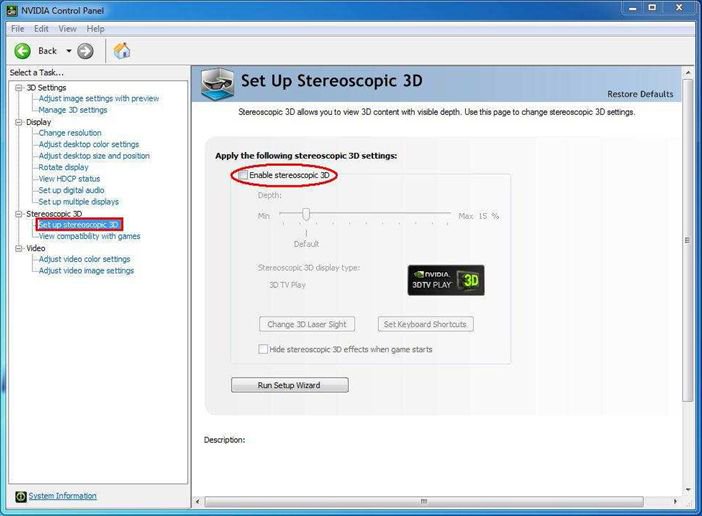
B. Please right click on desktop, and enter NVIDIA Control Panel.
C. Select "Setup Stereoscopic 3D task" in NVIDIA Control Panel, and check to "Enable Stereoscopic 3D"
D. If it's the first time for you to setup 3D feature, the system may lead you to run Setup Wizard. Please follow the instruction and finish the Setup Wizard.
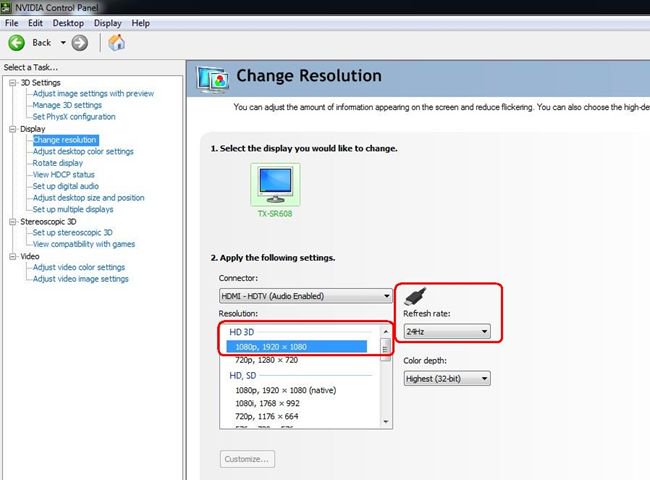
E. After finishing the Setup Wizard, please enter Display > Change Resolution, set the resolution to "HD, 3D" with proper solution and "Refresh rate".
We set it as "1080p" and 24Hz during our tests.
F. Click "Apply" to save the changes.
2. Please follow below steps to setup your PowerDVD10
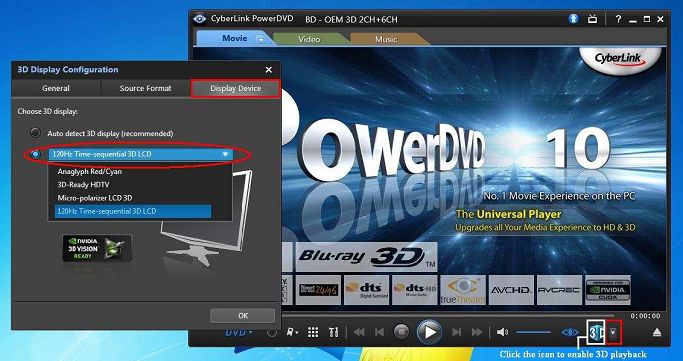
A. Click on the arrow right next to the "3D" icon on PowerDVD10 to start 3D Display Configuration.
B. Set the proper type of your monitor / TV in Display Device. As shown in picture below, we select 120Hz Time-sequential 3D LCD for example.
* Note: Please note that different monitor/TV/content may have different settings; please check user manuals of your monitor / TV/content for further details.
C. Then you can play the 3D content.
 메뉴
메뉴