우리는 더 개인화되고 더 부드러운 경험을 제공하기 위해 쿠키를 사용합니다. 이 웹사이트를 방문하면 쿠키 사용에 동의하는 것 입니다. 쿠키를 허용하지 않거나 추가 정보가 필요한 경우 당사의 개인 정보 보호 정책을 방문하십시오.
필수 쿠키 이 쿠키는 웹사이트의 정상적인 작동에 필수적이며 비활성화할 수 없습니다.
분석 쿠키 이 쿠키는 방문자가 웹사이트를 어떻게 사용하는지 파악하는 데 도움이 됩니다.
마케팅 쿠키 이 쿠키는 방문자를 추적하고 관련 광고를 표시하는 데 사용됩니다.
소셜 미디어 쿠키 이 쿠키를 사용하면 소셜 미디어에서 페이지와 콘텐츠를 공유할 수 있습니다.
Q: ION330 support Dolby Digital 5.1 or DTS 5.1?(9/3/2009) A: ION330 can support Dolby Digital 5.1, DTS 5.1 and LPCM 7.1 only under Windows® Vista™ or later version.
Please refer to below steps to setting your system.
1. Please update the HOTFIX: KB959458 or update your Vista Service Package to SP2.
Hotfix download link: http://support.microsoft.com/kb/959458
2. Install the drivers in the order listed as below
a. VIA® HD Audio Driver 7100d
b. NVIDIA® HD Audio driver 1.0.0.51
c. NVIDIA® nForce All in 1 v20.14
3. Install a proper AP, we used PowerDVD 9.0 for tests here.
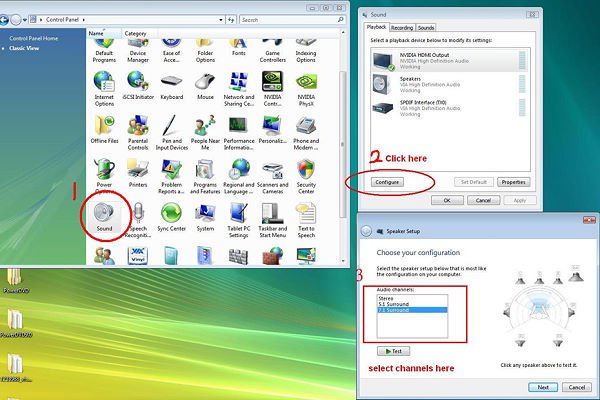
4. Enter Control Panel -> Sound -> Configure to choose Stereo, 5.1.
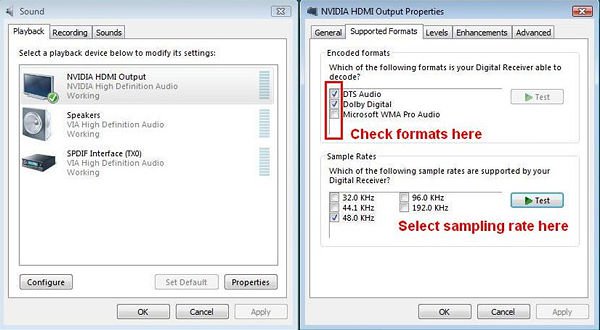
5. Enter Control Panel -> Sound -> Properties to set the sampling rate, Max Fs. for Dolby-Digital DTS is 48 KHz.
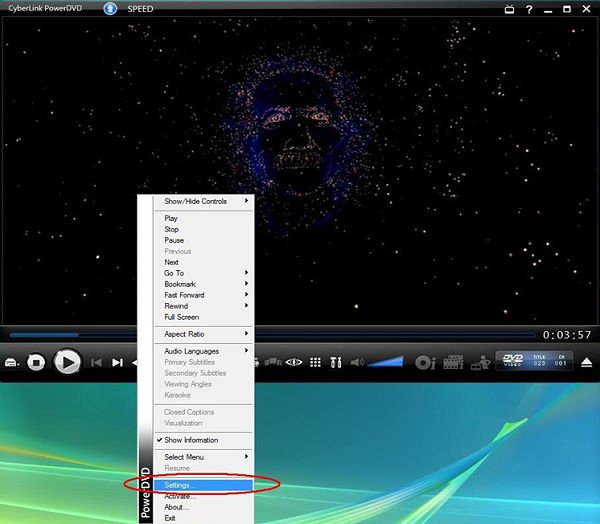
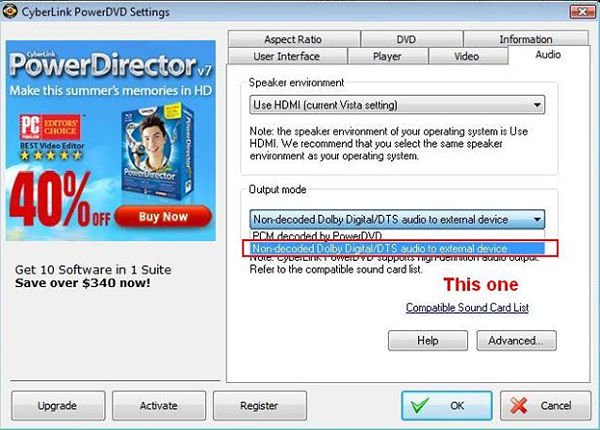
6. RIGHT CLICK in PowerDVD -> Settings -> Audio
a. Speaker Environment -> Use HDMI (Current Vista Setting)
b. Output Mode -> Non-Decoded DD/DTS to external device.
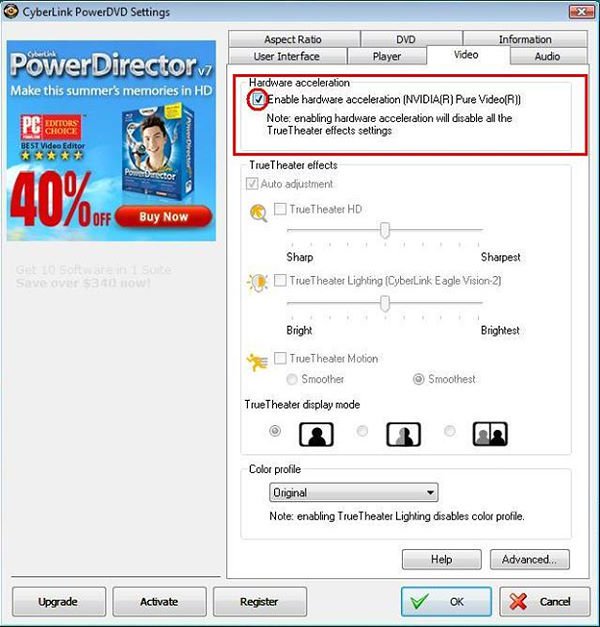
7. RIGHT CLICK in PowerDVD -> Settings -> Video. Enable Hardware Acceleration
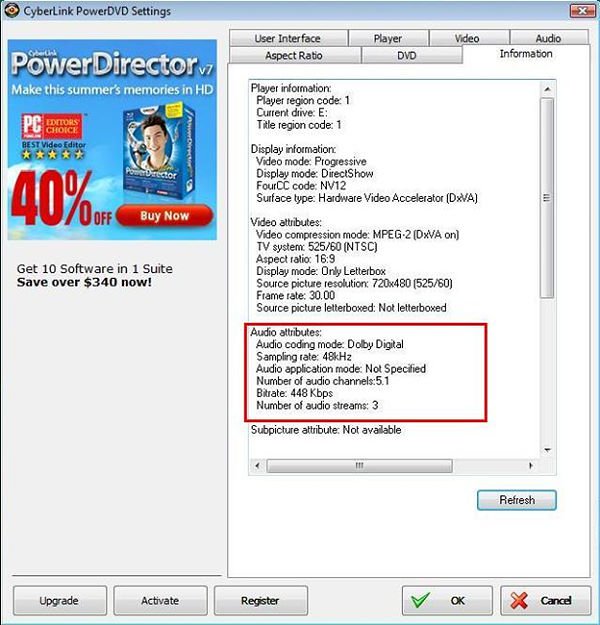
8. As you can see in the picture below, the audio output is Dolby Digital 5.1.
*If you want to output DTS 5.1, please select it in audio menu of DVD.
*For your information, the source of the test is a DVD which supports both DD5.1 and DTS 5.1.
 메뉴
메뉴