우리는 더 개인화되고 더 부드러운 경험을 제공하기 위해 쿠키를 사용합니다. 이 웹사이트를 방문하면 쿠키 사용에 동의하는 것 입니다. 쿠키를 허용하지 않거나 추가 정보가 필요한 경우 당사의 개인 정보 보호 정책을 방문하십시오.
필수 쿠키 이 쿠키는 웹사이트의 정상적인 작동에 필수적이며 비활성화할 수 없습니다.
분석 쿠키 이 쿠키는 방문자가 웹사이트를 어떻게 사용하는지 파악하는 데 도움이 됩니다.
마케팅 쿠키 이 쿠키는 방문자를 추적하고 관련 광고를 표시하는 데 사용됩니다.
소셜 미디어 쿠키 이 쿠키를 사용하면 소셜 미디어에서 페이지와 콘텐츠를 공유할 수 있습니다.
Q: My P45 motherboard has two onboard LANs. How do I set the Teaming function and combine both onboard LANs to be a team with more bandwidth in my system?(9/5/2008) A: Before setting Teaming function, please make sure if your Switch (or Router) could support Teaming (IEEE 802.3ad Link Aggregation) function. (For example: D-Link DGS-3100…)
Then, please refer to following steps to set "Teaming function"...
1. Install RtkTeaming driver ver.1.0.0.51 from Motherboard Support CD
(/Driver/Teaming/ RtkTeaming 1.0.0.51…)
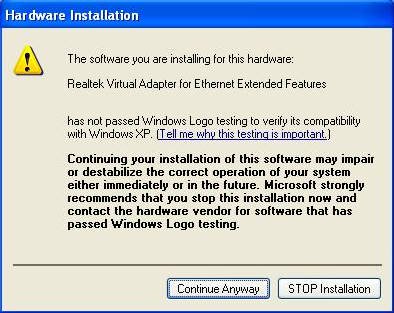
(*When installing teaming driver, system will show below warming message. Please choose "Continue Anyway" and keep installing driver.)
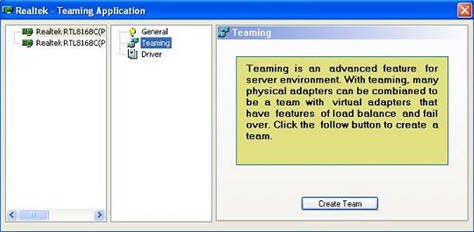
2. After installing driver, please open "Teaming Utility" in Programs. (Start > Programs > Realtek > Teaming Utility >…)
3. Click "Teaming" item and then press "Create Team" button.
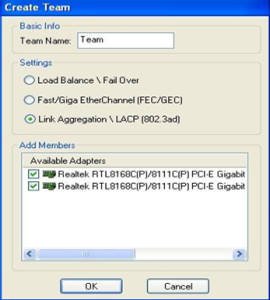
4. Key in Team Name and choose "Link Aggregation \ LACP (802.3ad)" for Settings.
5. Select two available onboard LAN cards and then press "OK" button (After pressing "OK" button, system will show below warming message. Please choose "Continue Anyway".)
6.After doing above settings, system will auto create a new Local Area Connection
7.Reboot system
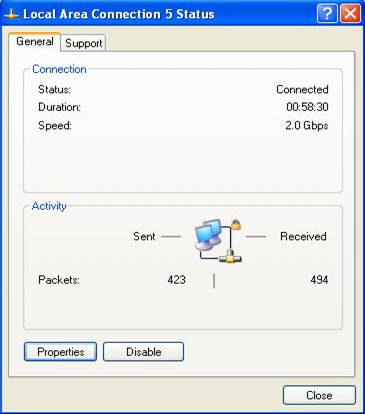
Then, you will find the "Speed" column of new Local Area Connection will show 2.0Gbps.
 메뉴
메뉴