Motherboards button
Serie schede madri
Graphics Card button
Serie Scheda grafica
Monitors button
Monitor Gamer
Power Supply button
Power Supply
Mini PC button
Serie Mini PC
Industrial PC button
Serie PC industriali
Server/WS button
Serie server/workstation
Loading

Utilizziamo i cookie per offrirti un'esperienza più personalizzata e fluida.
Visitando questo sito web, acconsenti all’utilizzo dei cookie da parte nostra. Se preferisci non accettare i cookie o hai bisogno di maggiori informazioni, consulta la nostra Informativa sulla privacy.

FAQ

Se siete pienamente consapevoli della categoria della vostra domanda, si può scegliere una delle categorie qui sotto per le domande più frequenti. Catalogo:

Risultati:
Q (537): How do I configure Realtek 5.1ch audio output on N100M under Windows 10?(10/29/2024)
A:Please follow the steps below.
1. Go to BIOS\Chipset Configuration and set Intel SST to "Enabled”.
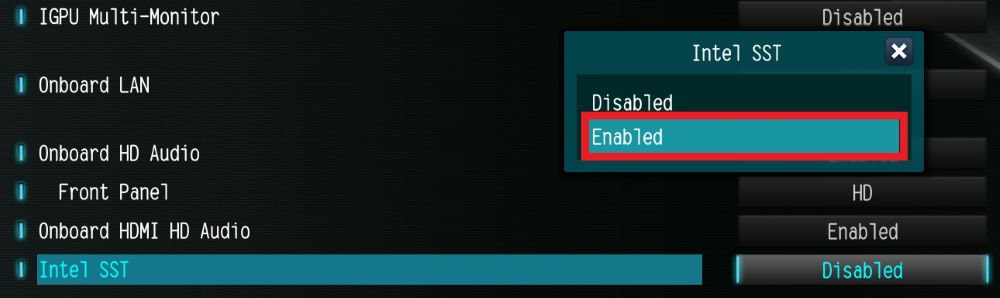
Go to BIOS\Chipset Configuration and set Intel SST to

2. Boot into Windows. Download and install Realtek high definition audio driver version:6.0.9503.1_RTK_SST and follow the instructions, restarting the system after the installation.
Realtek high definition audio driver ver:6.0.9503.1_RTK_SST:

https://download.asrock.com/Drivers/All/Audio/Realtek_Audio(v6.0.9503.1_RTK_SST).zip

3. After the restart, please check Device Manager > Sound, video and game controllers.

After the restart, please check Device Manager > Sound, video and game controllers.”

#N100M #Realtek #Audio #5.1 #HDMI #Audio #ISST #Intel #SST #surround #sound #no #sound #audio #driver #Intel #Audio #Win #10 #Windows